Text to Image - Generate stunning visuals from text prompts in seconds
From Prompt to Pixel-Perfect Image
How to Use GPT Image 2: Complete Guide to AI Image Generation
Move from prompt templates to image generation, reference editing, and saved downloads in one focused workspace.
52+
Ready-to-Use Prompts
2K-4K
Resolution Output
Free
Trial Available
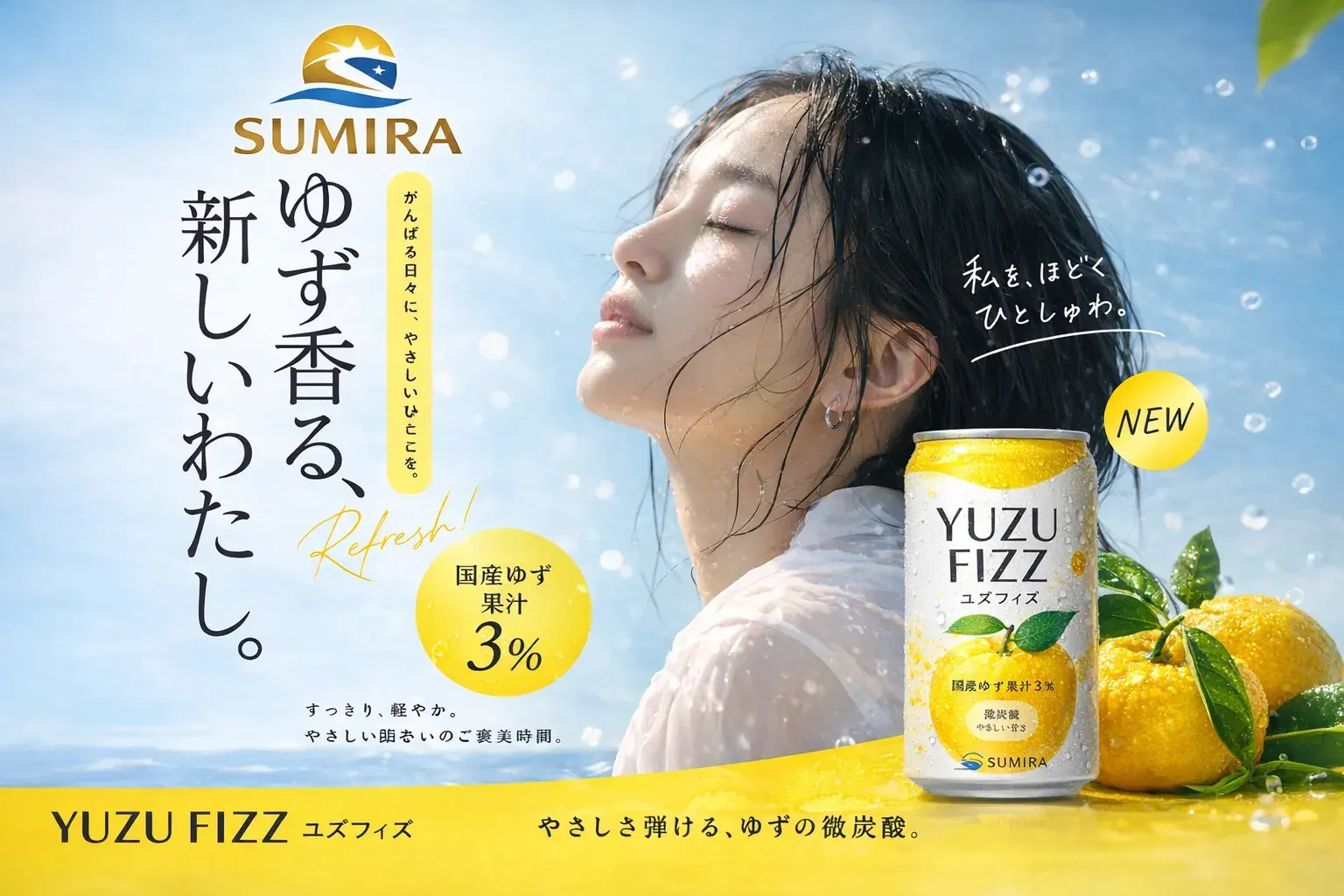
GPT Image 2
What is GPT Image 2?
GPT Image 2 is an advanced AI image generation and editing platform that transforms text descriptions into high-quality visuals. It delivers crisp, detailed images with accurate text rendering through natural language.
Explore All FeaturesImage Editing - Upload photos and refine them with natural language instructions
Style Transfer - Apply artistic styles while preserving structure and detail
Text Rendering - Accurate typography for logos, posters, and branded content
Step by Step
How to Use GPT Image 2: Step by Step
Follow these five simple steps to create your first AI-generated image.
01
Browse the Prompt Library
Start from reusable templates with preview images.
02
Write or Customize Your Prompt
Describe subject, scene, style, lighting, and ratio.
03
Click Generate
Choose output count and aspect ratio, then create.
04
Refine and Edit
Upload images in Edit Image mode and describe the change.
05
Download and Use
Save history, download results, and keep iterating.
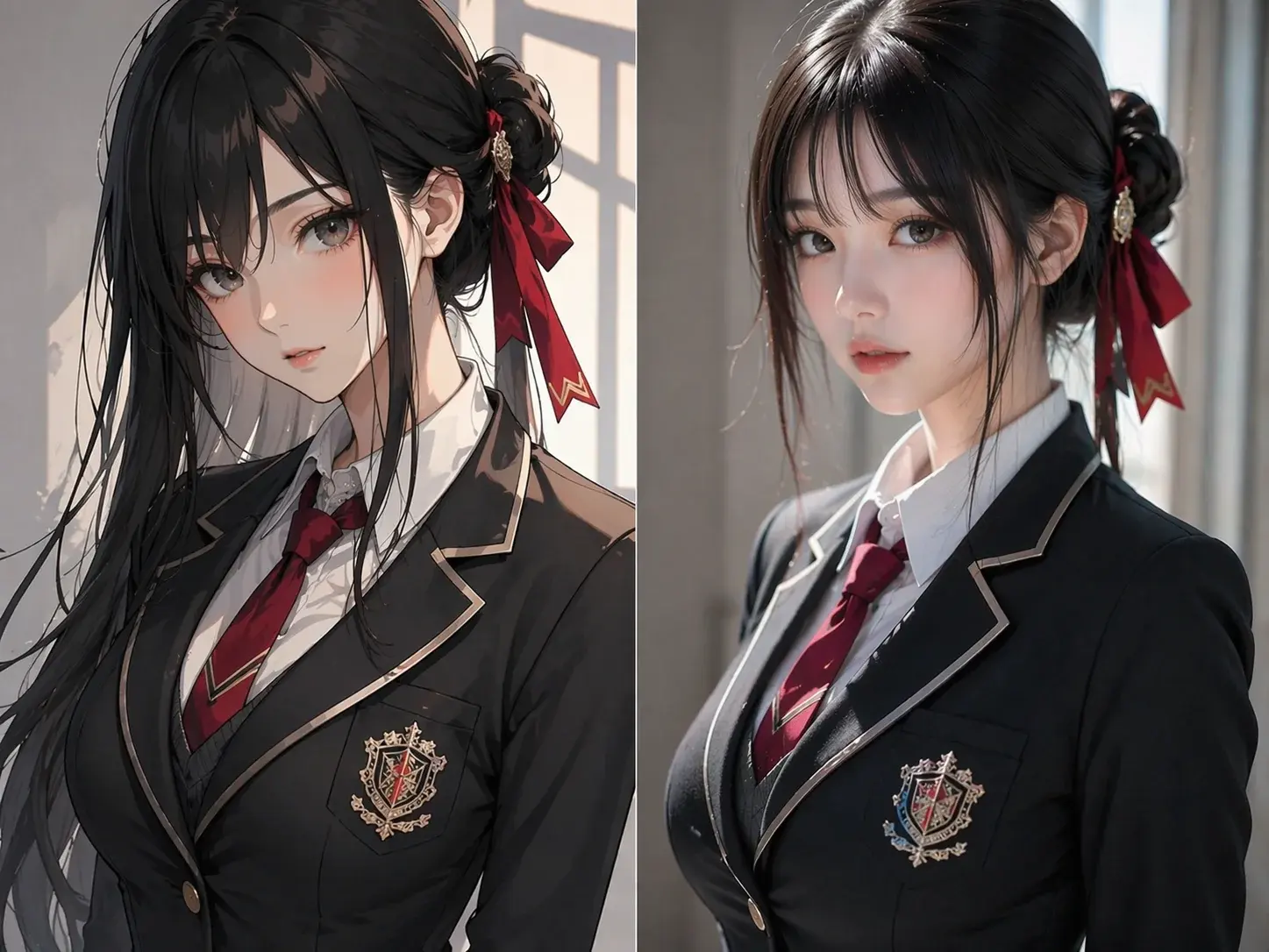
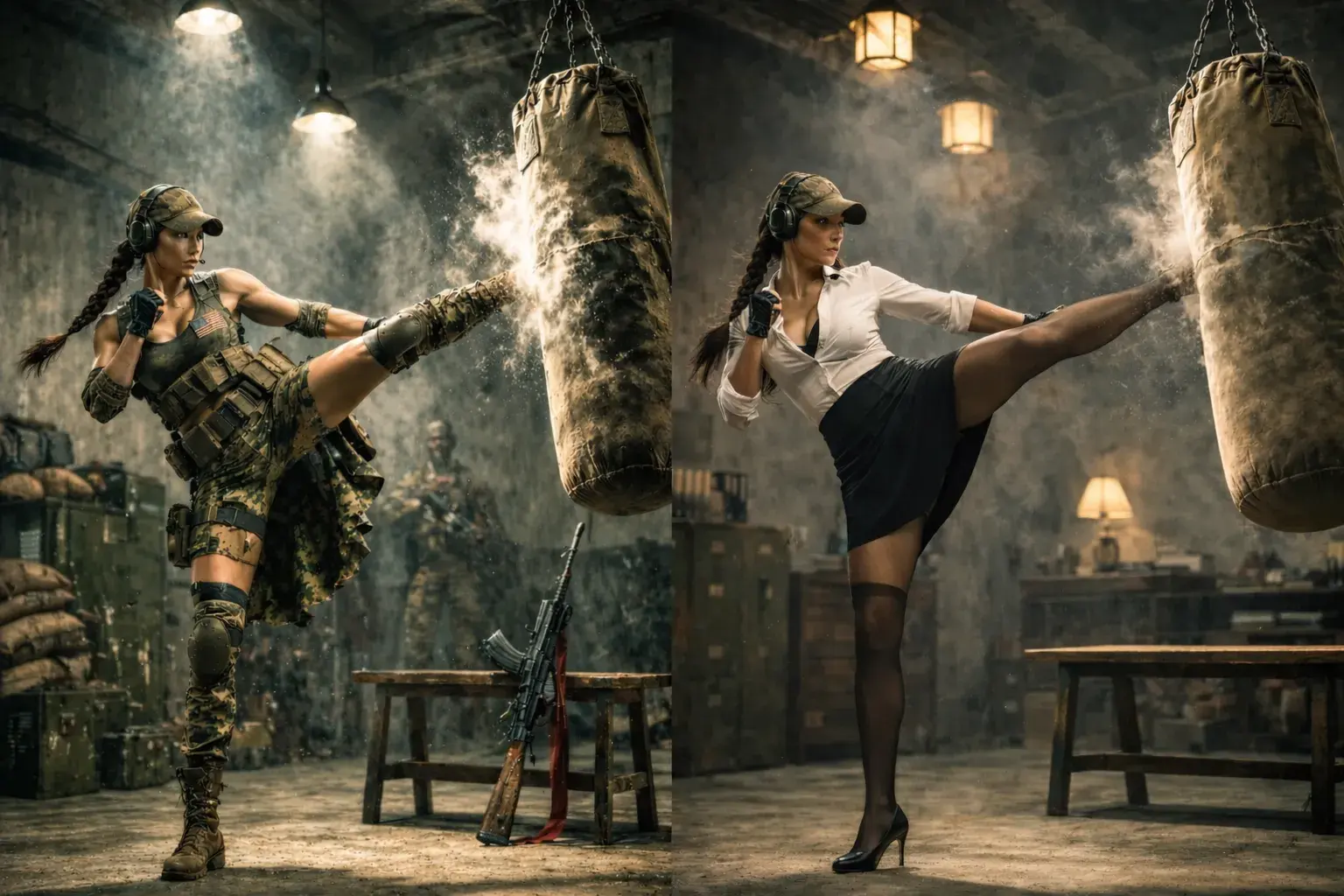
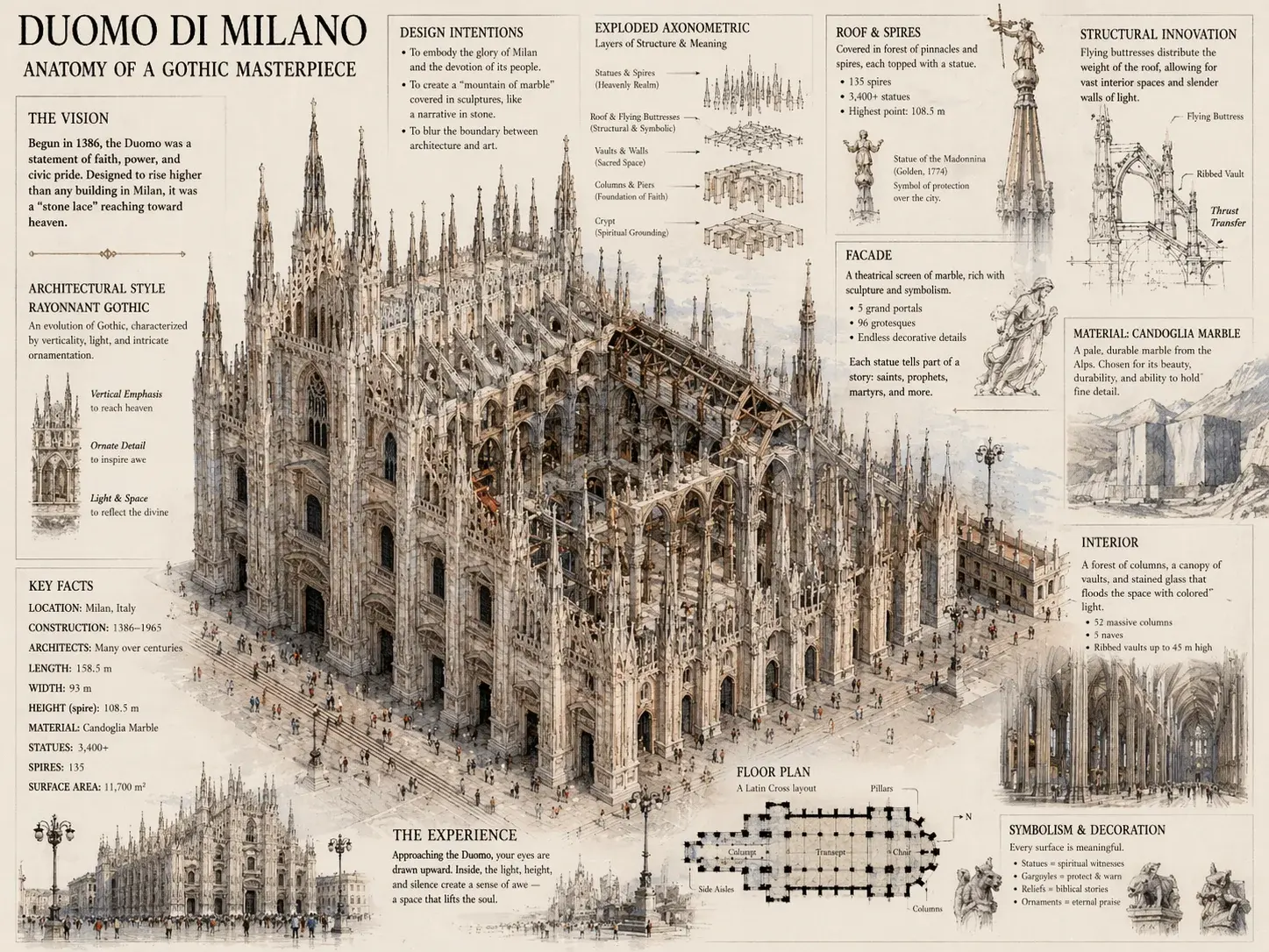
GPT Image 2 Examples: What You Can Create
See the range of visuals you can generate with GPT Image 2, from photorealistic portraits to creative illustrations.
Pro Tips
GPT Image 2 Tips: Get Better Results
Be Specific
Instead of 'a cat', write 'a fluffy orange tabby cat sitting on a windowsill at sunset'. The more detail you provide, the better the result.
Define Style
Include artistic style, camera angle, composition, and visual medium so the output lands closer to the intended look.
Describe Lighting
Add lighting direction ('soft natural light from the left'), mood ('warm and cozy'), and atmosphere ('dreamy bokeh background') to guide the AI.
Use References
Upload reference images to match style, color palette, or composition. Describe what aspects to keep ('keep the lighting style') versus change.
Iterate
Start with a basic prompt, generate, then refine based on results. Adjust specific elements rather than rewriting the entire prompt.
Right Size
Choose the aspect ratio and output quality that match the final destination before generating.
Use cases
GPT Image 2 Use Cases
Use GPT Image 2 for practical creative workflows across marketing, social, product, and art.
Marketing & Advertising
Create campaign visuals, product scenes, display ads, and promotional concepts.
Social Media Content
Generate thumbnails, posts, stories, and short-form creative assets.
UI/UX Design
Mock up app screens, landing sections, interface concepts, and product flows.
Creative Art & Illustration
Explore posters, character ideas, editorial art, and visual directions.
FAQ
GPT Image 2 FAQ
Answers to the most common questions about creating images with GPT Image 2.
New users can start with trial credits. Paid plans and pay-as-you-go packs unlock more generation volume.
Get started with GPT Image 2
Join creators using GPT Image 2 for campaigns, product visuals, and social content. Generate your first images in minutes.